
If you're creating custom Entities in Content Hub then you're likely going to be setting up some fields which relate to image assets. There is a default picker for these relation fields, but it's not a great editorial experience most of the time. So having worked through how to set up something better, I'm writing it down as a crib-sheet for myself next time. And maybe it will help you too...
The challenge
 url copied!
If you set up an entity which has a relation to an asset, you'll have something along the lines of this in the schema:
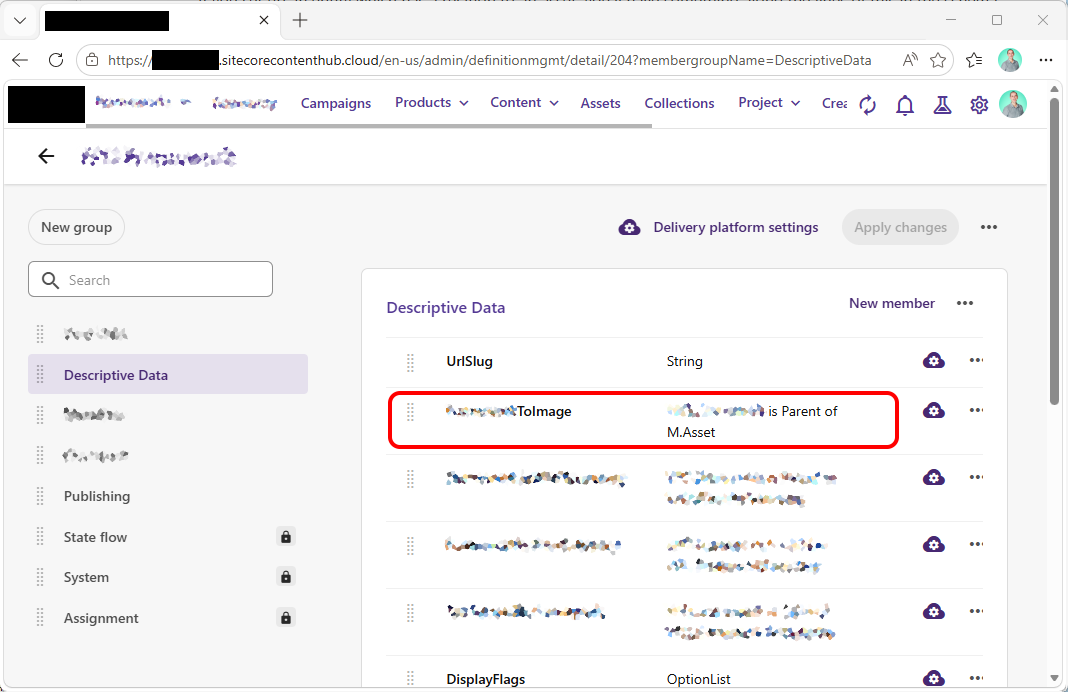
The default way to make that editable is to add an
EntityDetails
component to a details page for your Entity and enable that field as editable. So when you go to your page and click the "+" icon next to your field you get a dialog like this:
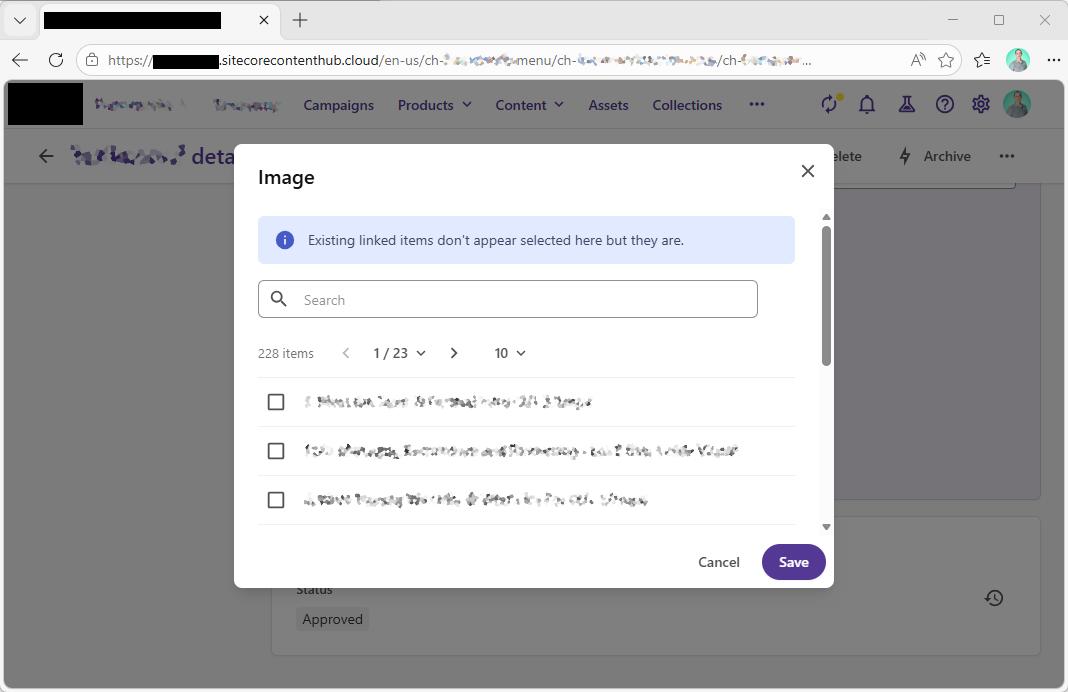
So you can choose the items you want - but you can't see a preview of the images to help you choose easily, and you don't have a lot of fancy behaviour for filtering. A key issue you may have here is that your editor can pick anything that is an
M.Asset
- which might end up being a document, video or something else that isn't appropriate...
So what can we do to improve this?
Doing it better
url copied!
We can move the editing of our Asset-Relation field out of the basic details-page editor and onto another tab where we had could show a visual view of the assigned assets. And that can be configured with a search dialog which will show thumbnails of the assets, and can be filtered to only show the right types of assets.
You can use a
Tabs
component on the detail page to add a place to put your new selection. When you add one, the dialog includes another useful feature: You can add a "Permission" setting to control the visibility of the tab, to only users granted the "Update" permission on the entity:
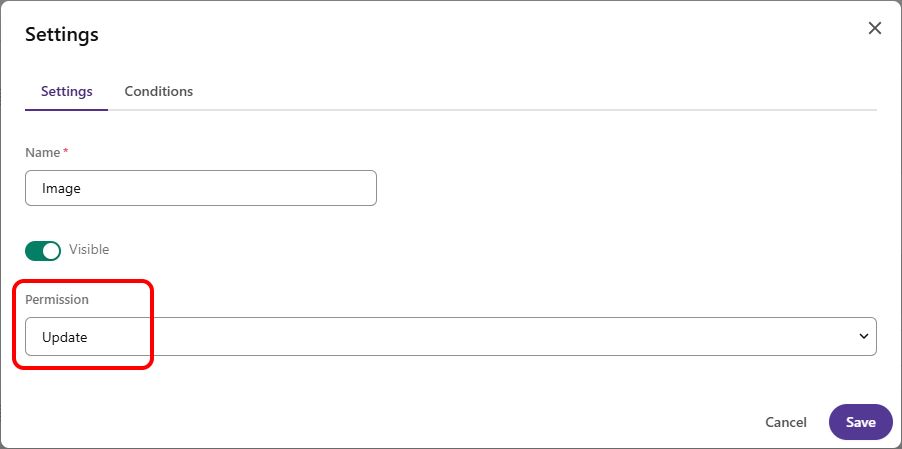
So if it's appropriate for your use case, you can have that entire tab hidden when the current user doesn't have the security rights to make use of the picker behaviour to change the value of your relation field.
With that tab in place there are three key components to add to it, which probably want laying out as shown:
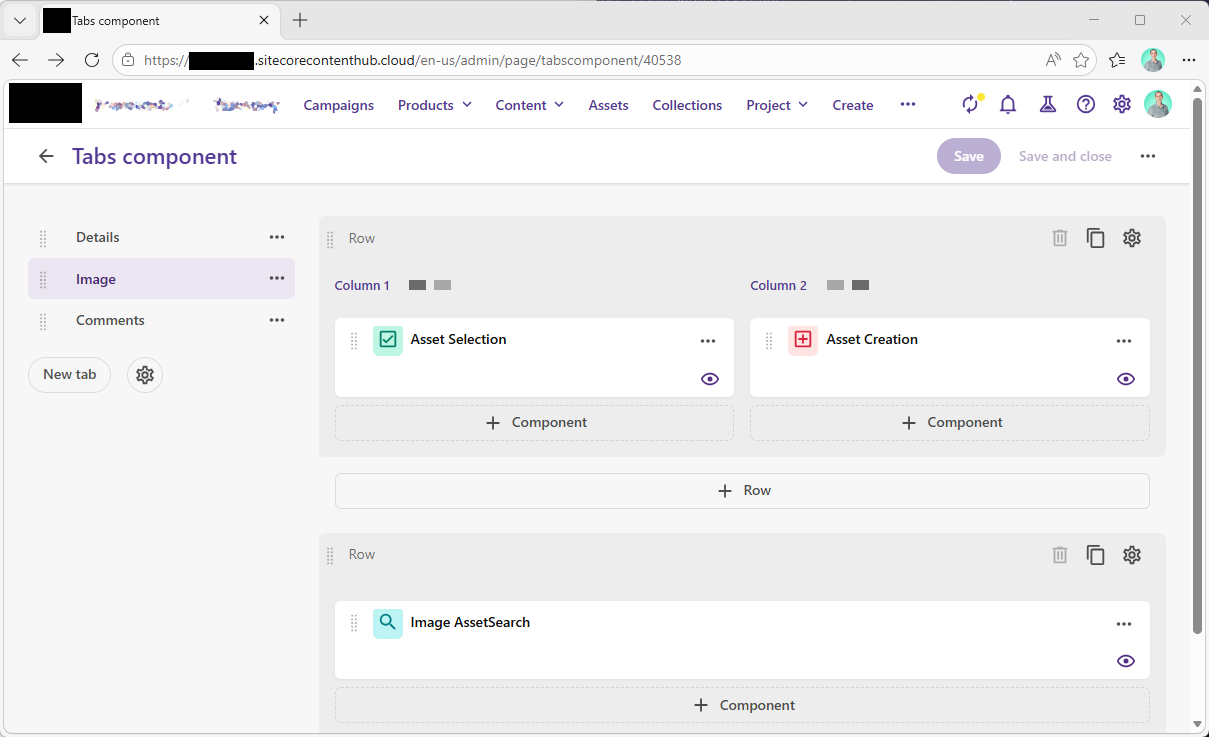
-
A listing
Searchcomponent (Bottom center)
Provides the listing of what assets are currently related via the field being edited - giving a nice visual view of what's been selected. Configuring this requires setting two filters. First, it needs a "fixed" filter that ties what's displayed to the field being managed:
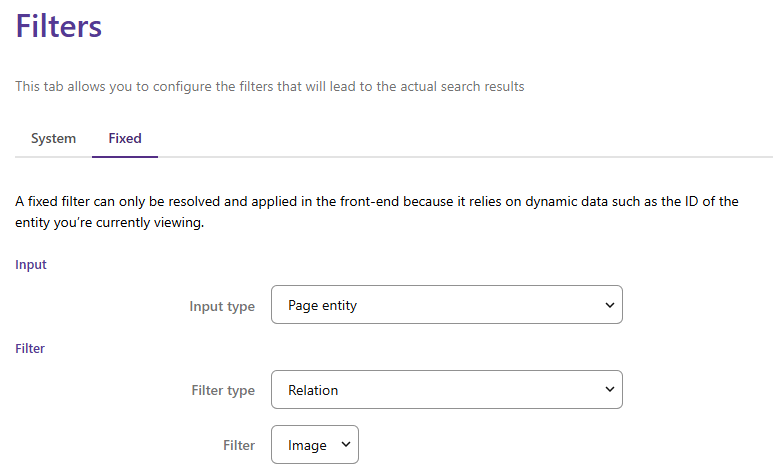
The input type of "Page Entity" ties the search component to the current entity being displayed on the detail page, and then the filter type of "Relation" and picking the relevant field for the "Filter" dropdown connects it to the right field in your entity. You may also want to add a System filter for the correct entity type:
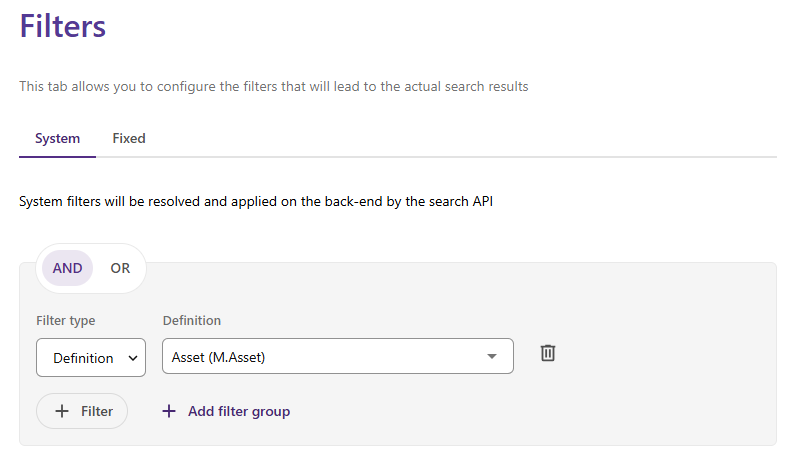
And then you can configure the appropriate View(s) to show the field. Enabling the "Grid" view with a template showing the thumbnail and title. The operations for this view should probably include viewing the related details page:
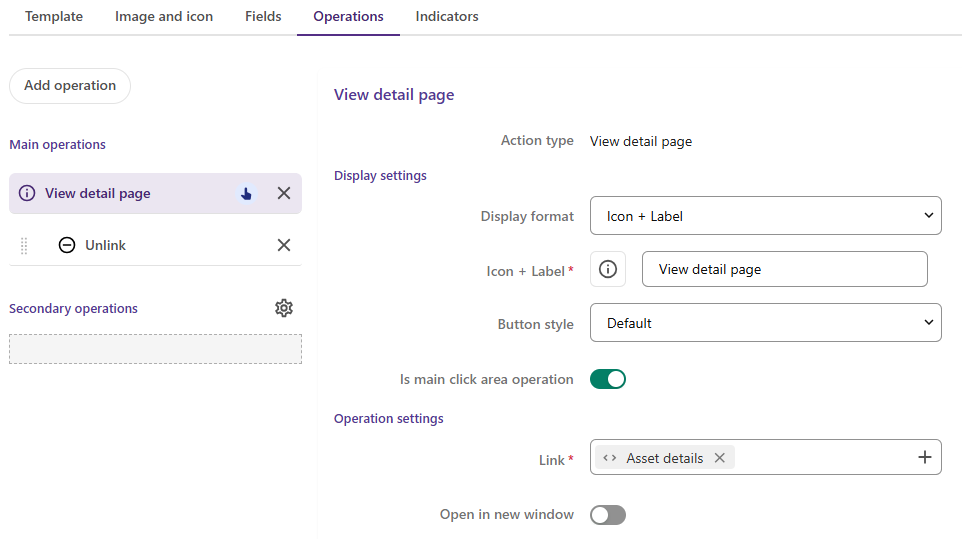
The key choices here are the "Is main click area operation" choice, which lets the user click on the card to view details, and the "Link" option, which picks the correct page to show the details of the asset. And they should also have the option to "Unlink" the related asset - which is Content Hub's phrase for removing this one from the selected things:
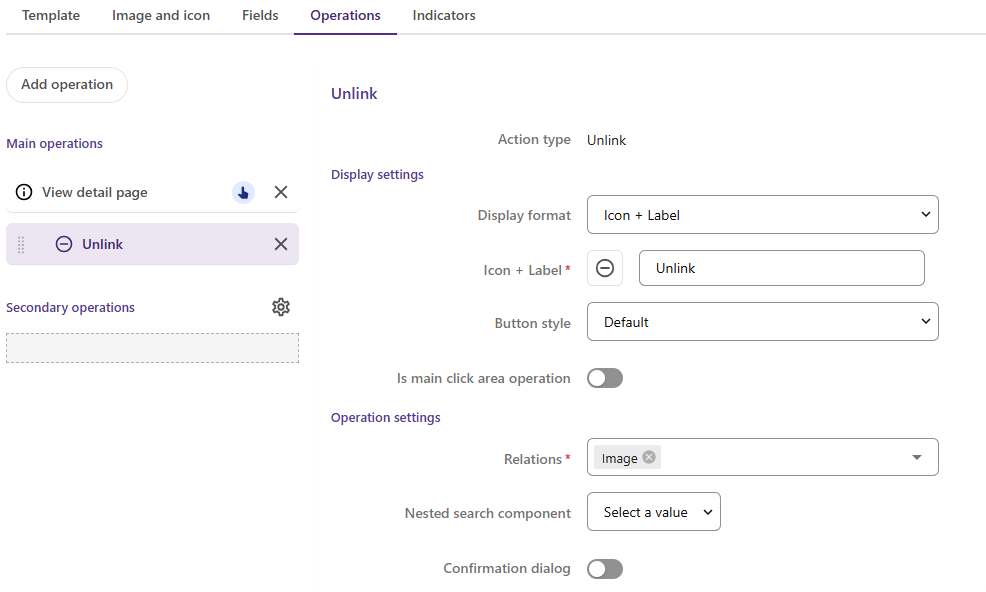
This just needs to be told which field the link is being removed from in the "Relations" dropdown. -
A
Selectioncomponent (Top left)
Optional - but helpful. Allows the editor to select multiple related assets and do some operations on them all together. -
A
Creationcomponent (Top right)
This is what allows an editor to assign new assets to the field - giving them a visual picker. There are a couple of settings needed here. First is to tie this component to the search component above. That's done with the "General" tab:
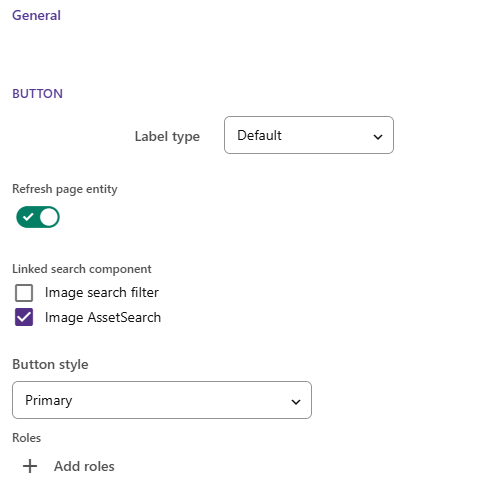
The "Linked search component" field needs the search component above selected. And then secondly it needs also to be tied to the search that's going to be used as the picker for adding new related entities. To do that, we need to enable the "Link Items" option, and connect it to the field being added to, and to a second search component:
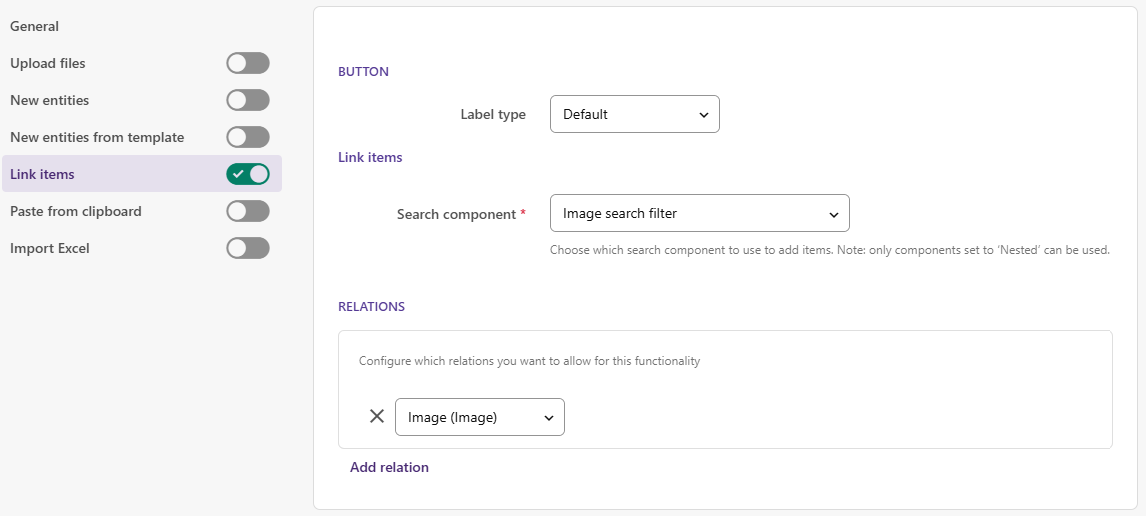
-
The picker
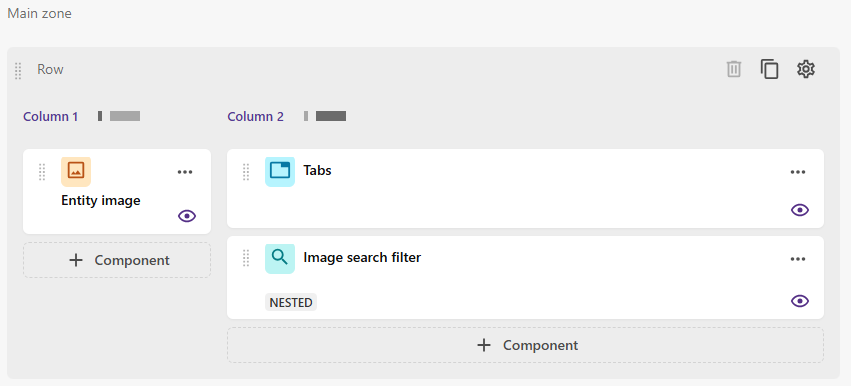
Searchcomponent (Sibling ofTabscomponent, Nested)
To provide a search-driven picker, we can add a second search component to the Details page. This one should go at the root of the page, and it needs to be set as "Nested" (with the switch on the Settings for the component):
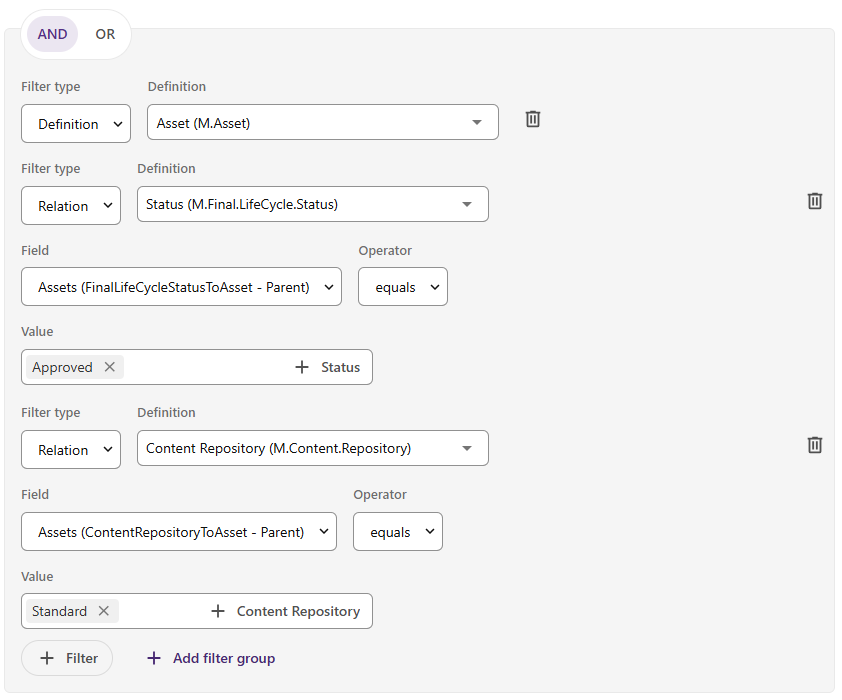
This component needs setting up with just System filters - to restrict the list it can return to the specific group of entities you want. You likely want to pick the type of asset you require, that it's in the "approved" state for the DAM workflow and that it's part of the "Standard" content store:
It will need one or more views enabled, and these will likely want a template that shows the thumbnail and the title. And it will probably want paging and sorting options configured, and then maybe some facets set up too. Those will be specific to what you want to display.
And finally, you probably want to disable your original field (Maybe hide entirely? Maybe make non-editable if you're hiding the selection tab for people who can't change the field? Depends on your use case) in the Entity Details component too.
But with all that set up and configured, you'll have a tab where you can see the currently selected entities for your field:
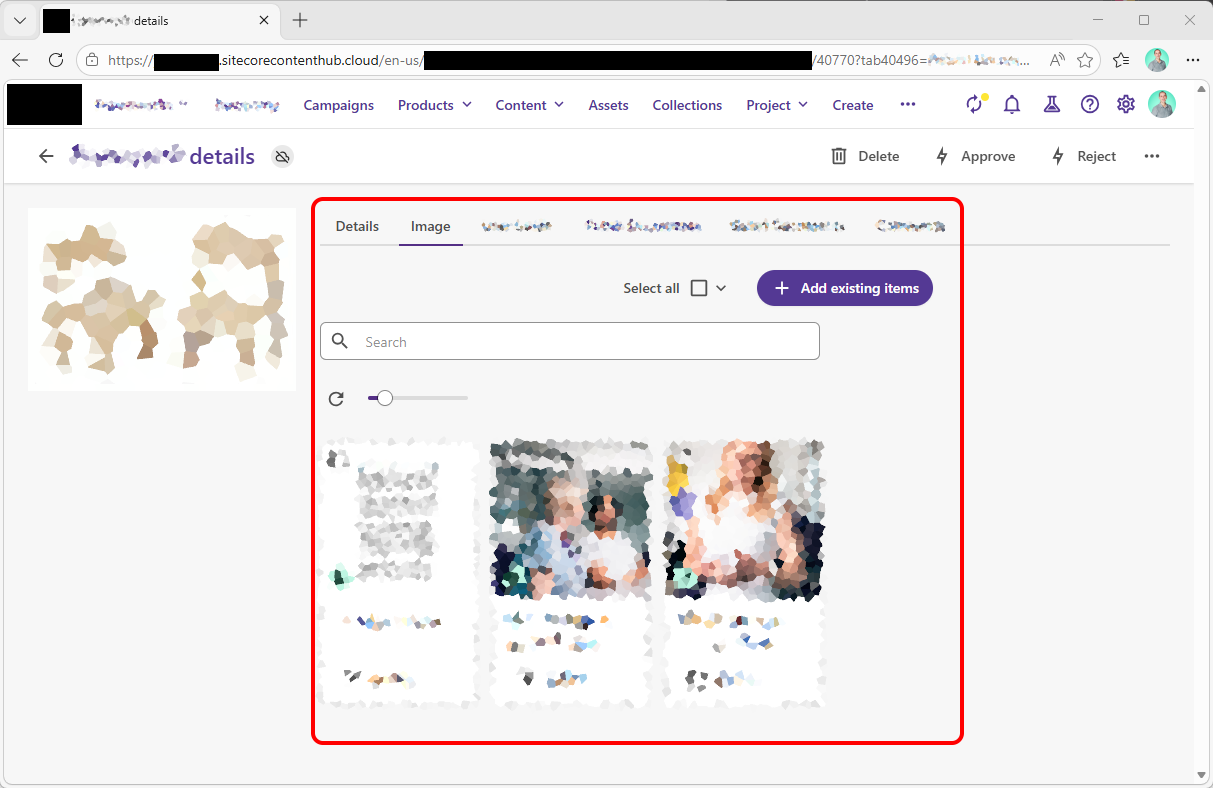
And if you click the "Add existing items" button you get a pop-over which lets you search, filter and see thumbnails of the choices available to pick from:
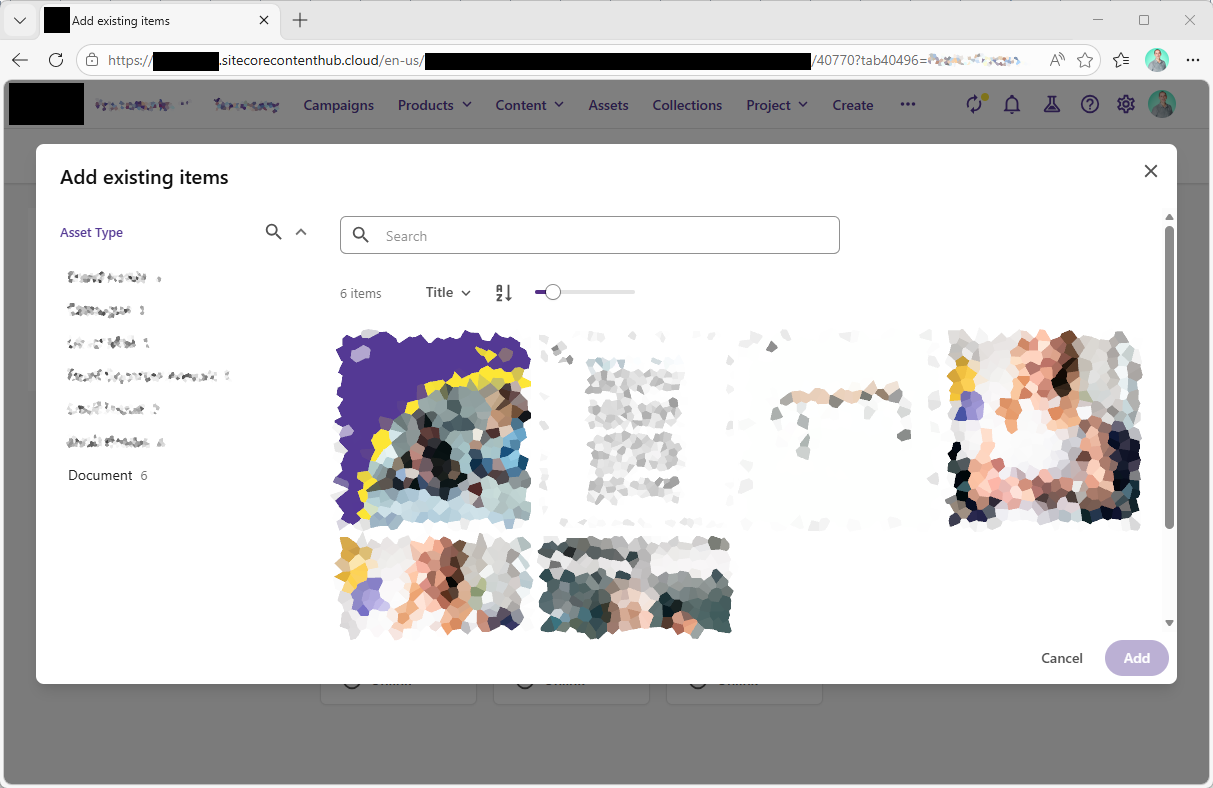
And that's definitely more usable than the basic picker we started with...
↑ Back to top