
I often find myself building little .Net tools to help me with repetitive jobs. And fairly often these need some config data to drive their behaviour. If I have a tool that runs on my home server as a Scheduled Task then providing a way to edit that config remotely can be important. A web app is one way of solving this problem - but it tends to be fairly high effort. Remoting to the server is another, but network security can make that a challenge. So an alternative solution is to expose the config file via WebDAV so that a simple remote tool can use HTTP protocols to edit it. Here's a basic example of setting that up...
Broad outline
 url copied!
The overall concept is fairly simple. WebDav gives a file editing API on top of HTTP. So you can expose the config to be modified as a file via IIS, and implement appropriate security to prevent unauthorised access. So an editor can be anywhere on the internet but still read and write the data, and allow remote changes.
flowchart LR
  ed[Editor

Reads and writes config
data via WebDAV]
  subgraph Server
    IIS[IIS

Provides WebDav service
to expose file]
    File[Config
File]
    Tool[Some Tool

Reads the config file
when it runs]
  end

  ed <--> IIS
  IIS <--> File
  File --> Tool
Setting up IIS
url copied!
The file(s) you want to make available for editing need to exist in a folder somewhere on your webserver. Since this is going to be exposed for access from the outside you should make sure you've set sensible permissions. And you probably want to make sure that the folder doesn't contain any other files that shouldn't be visible externally.
So in my case, I tend to create a folder to hold just the config file to edit. That folder needs a couple of specific permissions applied:
- You need to add the
IIS_IUSERSgroup with "read" access to your folder so that the webserver process can see the data. - You need to add the users who are going to edit the data with "modify" rights, so they can read and write the data.
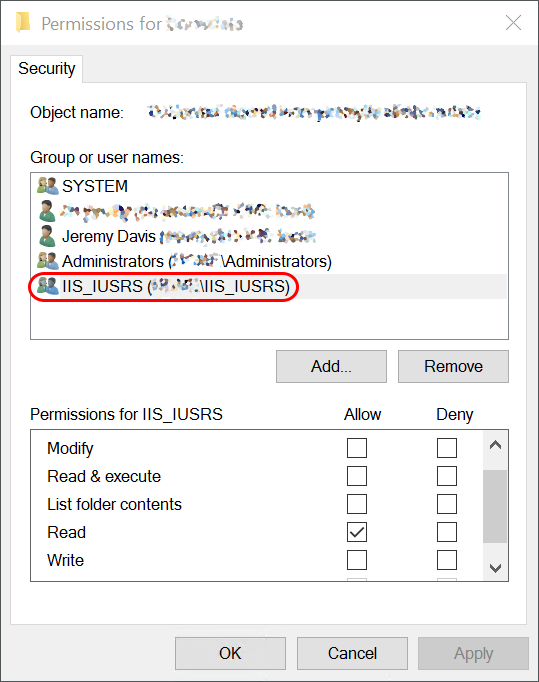
You also need to have another file in this folder: a
web.config
that ensures the appropriate verbs are allowed:
<?xml version="1.0" encoding="UTF-8"?>
<configuration>
    <system.webServer>
        <security>
            <requestFiltering>
                <verbs>
                    <add verb="DELETE" allowed="true" />
                    <add verb="PUT" allowed="true" />
                    <add verb="PROPFIND" allowed="true" />
                </verbs>
            </requestFiltering>
        </security>
    </system.webServer>
</configuration>
Depending on the file(s) you're working with, you may need to apply a mime-type mapping as well - if IIS doesn't know what type to apply to your data. That can be managed via the IIS UI.
Similarly, you may also want to remove the "powered by" header for security reasons. You can do that via the IIS Manager or set it directly in the
web.config
file:
...
<httpProtocol>
    <customHeaders>
        <remove name="X-Powered-By" />
    </customHeaders>
</httpProtocol>
...
You also need to ensure your server has WebDAV features installed. You can do this with the "Add optional features" dialog in Windows Server:
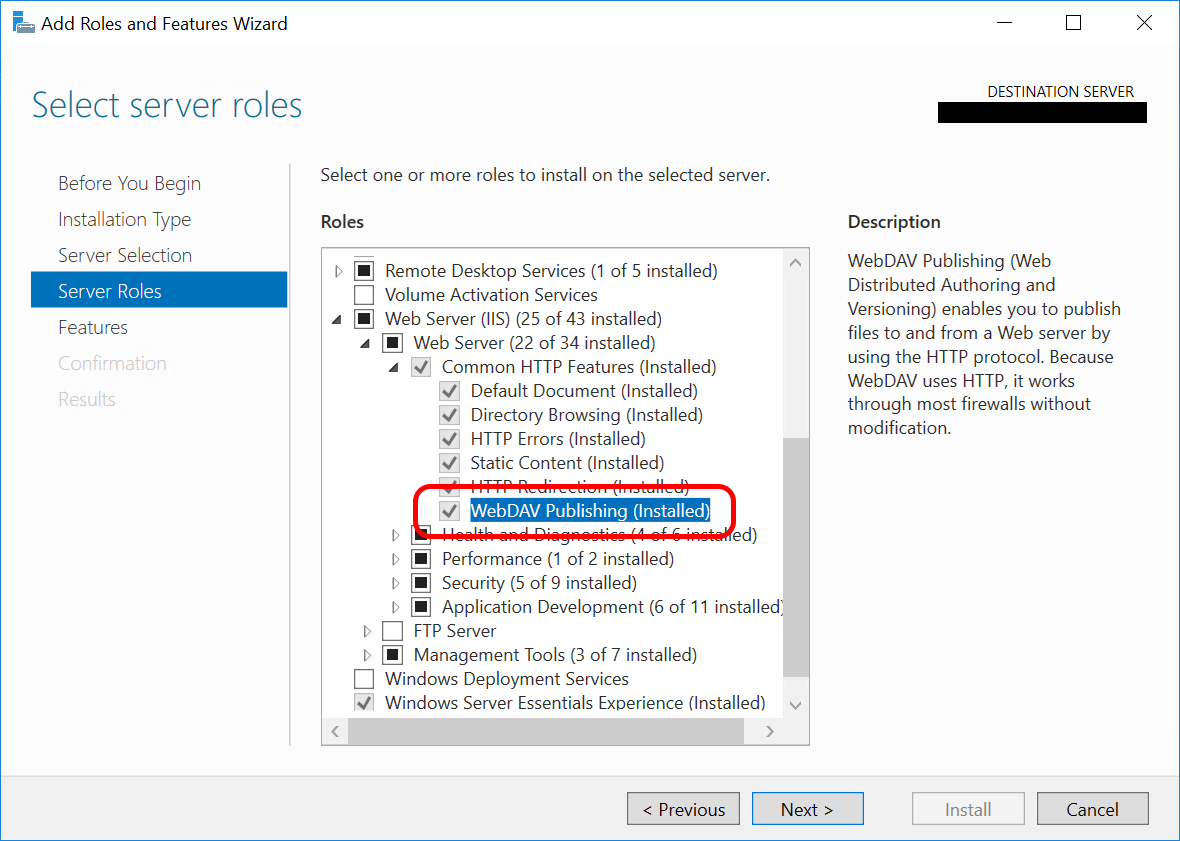
And then you need to configure IIS to enable WebDAV for your folder. First up, you need to ensure that "Windows Auth" is enabled for the site or folder in question. And you need to click the "WebDAV Authoring Rules" icon in the IIS Manager. The "Add Authoring Rule" link here gives you a dialog which can configure the core config:
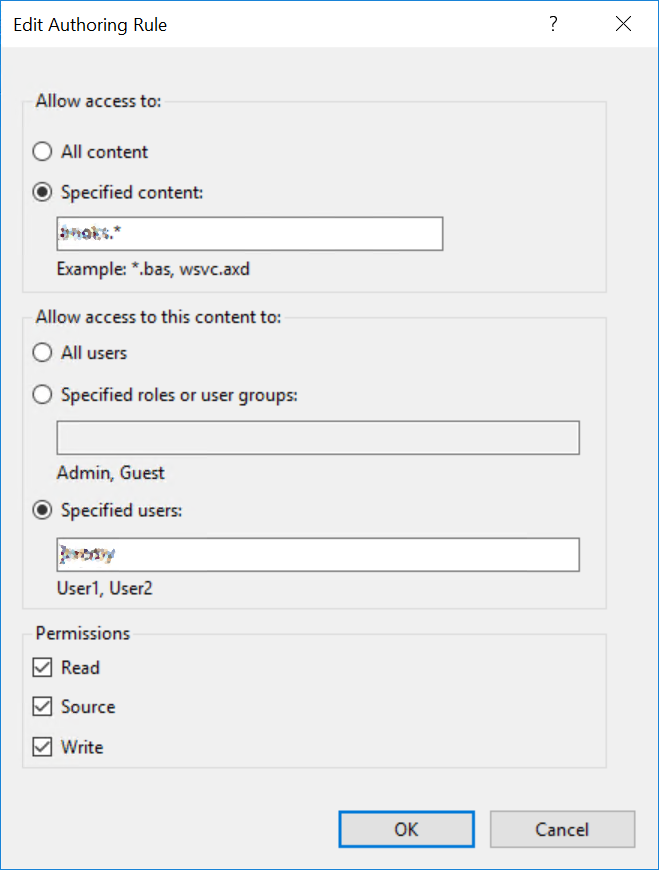
Ideally you specify the files you want users to be able to interact with. This is less of an issue if the only files in the folder are the editable ones, but it's still worth being as secure as you can. You should also be specific about which users (or groups) are allowed access here, to be as specific as possible about who has access.
And finally you need to specify the WebDAV permissions to grant. I've found that for read/write access to the file(s) you need to specify all three here.
Having added your rules here, you also need to ensure you've clicked "Enable WebDAV" on the "WebDAV Authoring Rules" page, to enable the feature on this site.
With those in place you should be able to access the file(s) remotely, if you have the relevant credentials.
Adding behaviour to a tool
url copied!
If you're not using a pre-built editing tool to modify the exposed files then you can enable WebDAV access from a .Net app fairly easily with the
WebDav.Client
nuget package.
That provides a client object, which you can set up as follows:
var creds = new NetworkCredential(username, password);

var webdavParams = new WebDavClientParams()
{
	Credentials = creds,
	PreAuthenticate = true
};

using var client = new WebDavClient(webdavParams);
That client uses a .Net
WebClient
under the surface, so you need to apply the same lifetime rules to this object that you would to a
WebClient. (Don't be creating and destroying them per-request - keep a single instance in place)
You can then do stuff like "test if you can access a file" with the
Propfind()
method:
var result = await client.Propfind(url);
That returns a bunch of metadata, including an
IsSuccessful
property that you can use to validate if the file exists and your access was successful.
You can get a stream to read the file with the
GetRawFile()
method:
using (var stream = await Client.GetRawFile(yourUrl))
And save changes to the file by using a call to
PutFile():
var response = await Client.PutFile(yourUrl, stream);
Note that the operations you call here need to match up with the verbs you enabled in the
web.config
above, or you'll get errors from your code.
That's all the config and code required to basic read/write access to a remote file.
↑ Back to top