
Jeremy Davis
Sitecore, C# and web development
I've been spending some time setting up some custom Entities in Content Hub recently. I bumped up against an issue with one feature where it took me a while to find the right info to make it work the way I wanted.
 url copied!
I was setting up a new entity. To do that I needed to:
The entity in question needed to have a few fields, but the important one here is that it needed to be associated with an image which was going to be the thumbnail / display image for the entity. It needed to work much like the listing and details for PCM Product entities that I've written about before.
But once I'd gone through what I thought was important there, I found that setting the image for the entity did not make the thumbnail or the details page images show up.
So what was I missing?
url copied!
To make it work, I found I needed to do the following:
url copied!
M.Asset
to link your asset to an image.
<EntityName>ToMasterAsset. I'm not sure if the name really matters, but I followed this pattern for clarity. (The display name can be whatever you need, of course)
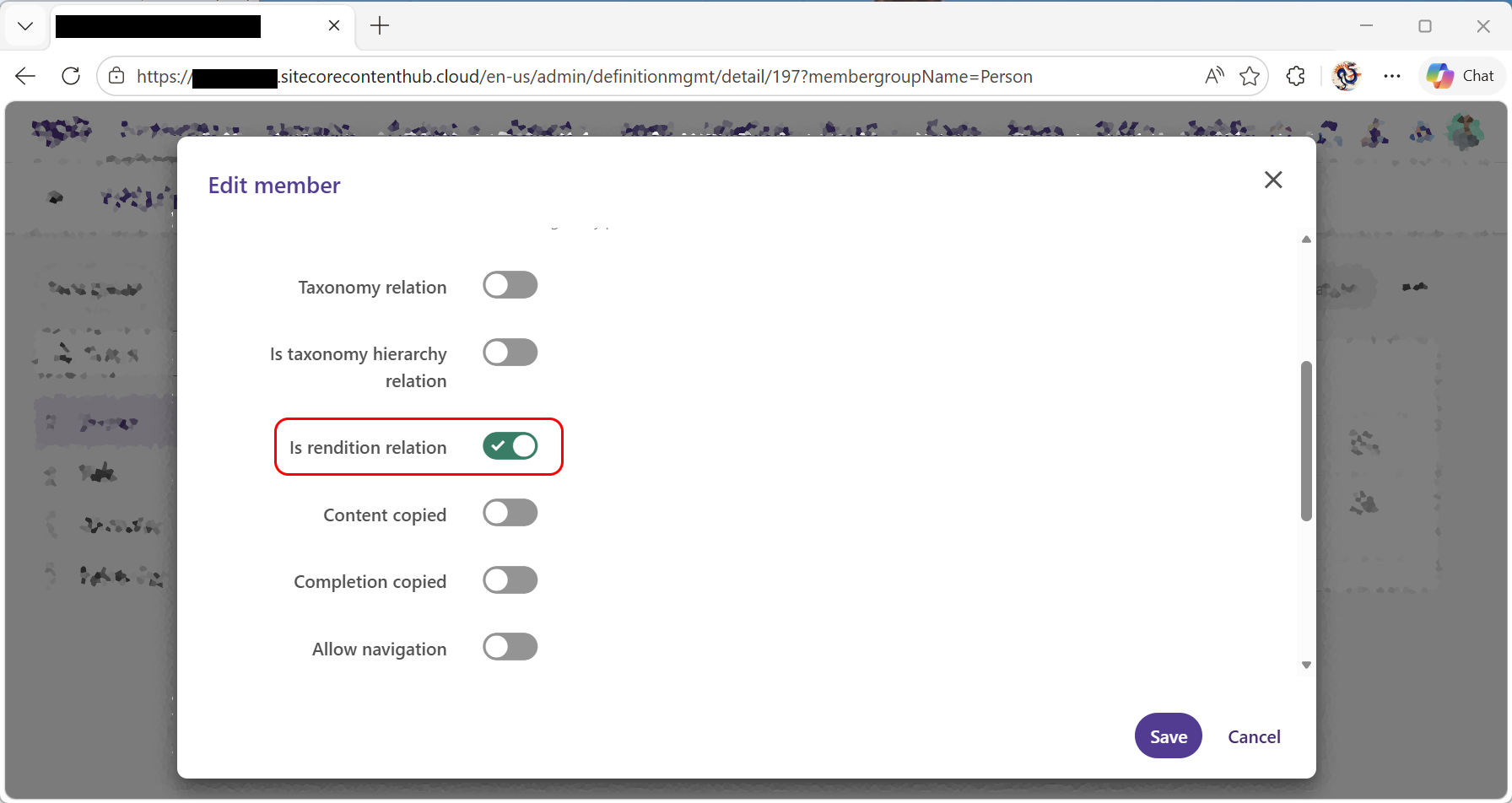 url copied!
When you create your listing, you need to add a "Search Component" to it. In the settings for this you need to enable the
Table
view, and then configure the "Image and icon" settings. This needs to have "Thumbnail (if available)" selected.
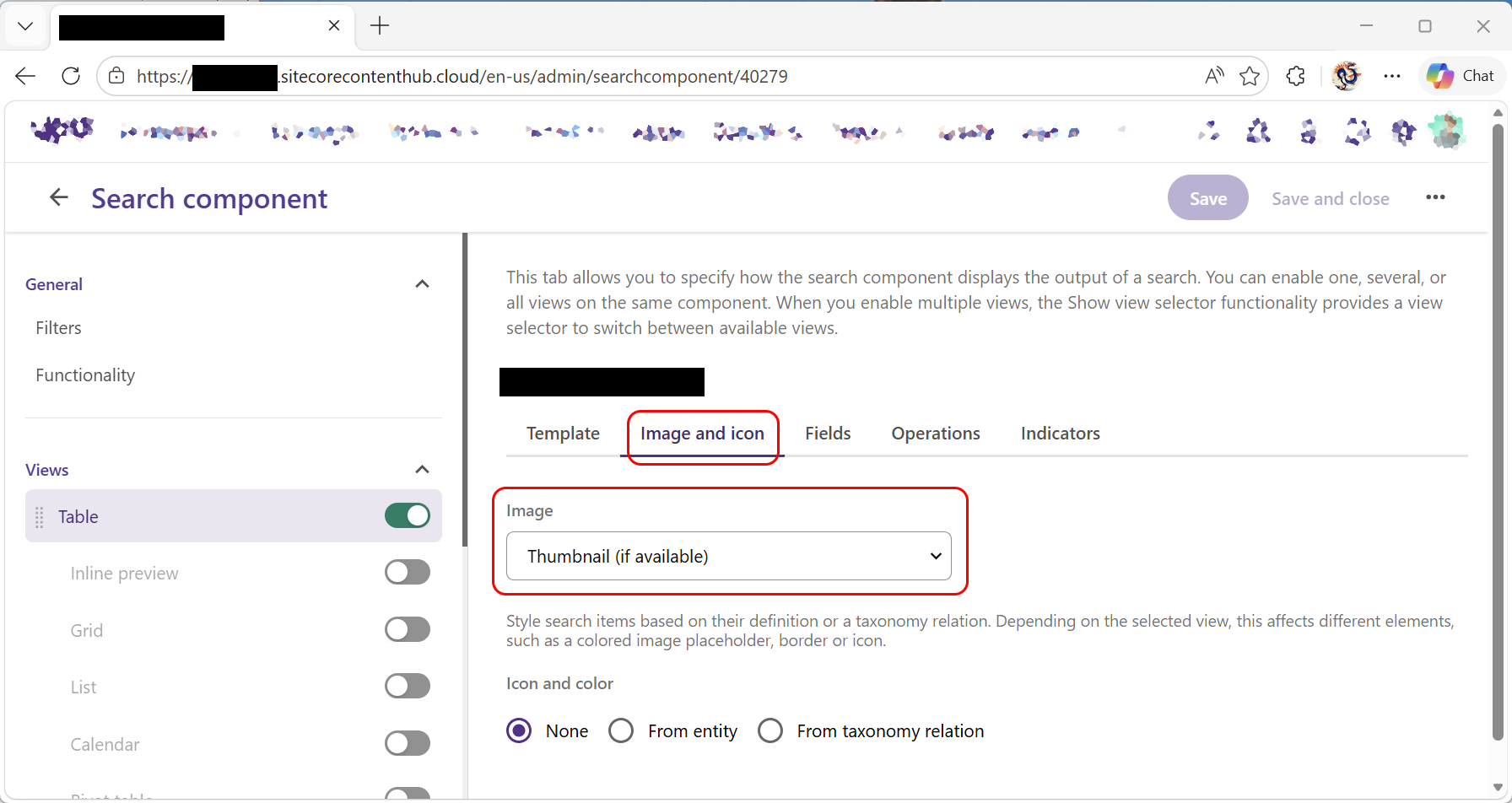
You don't have to specify a field for it to use here. It appears to pick up the field you tagged with "Is rendition relation" above.
url copied!
On your details page you need an instance of the
Entity Image Viewer
component. Again, you don't need to specify a field here.
url copied!
Optionally you may also want to make the image field clickable so a user can navigate the details page for the selected asset after they've set it.
To do that, when you add your "Entity Details" component to your details page, you need to find the image field in the appropriate field group and click the cog icon to the right of its name.
From that dialog, switch to the "Functionality" tab and make sure the "Detail page" field is set to the "Asset Detail" Page:
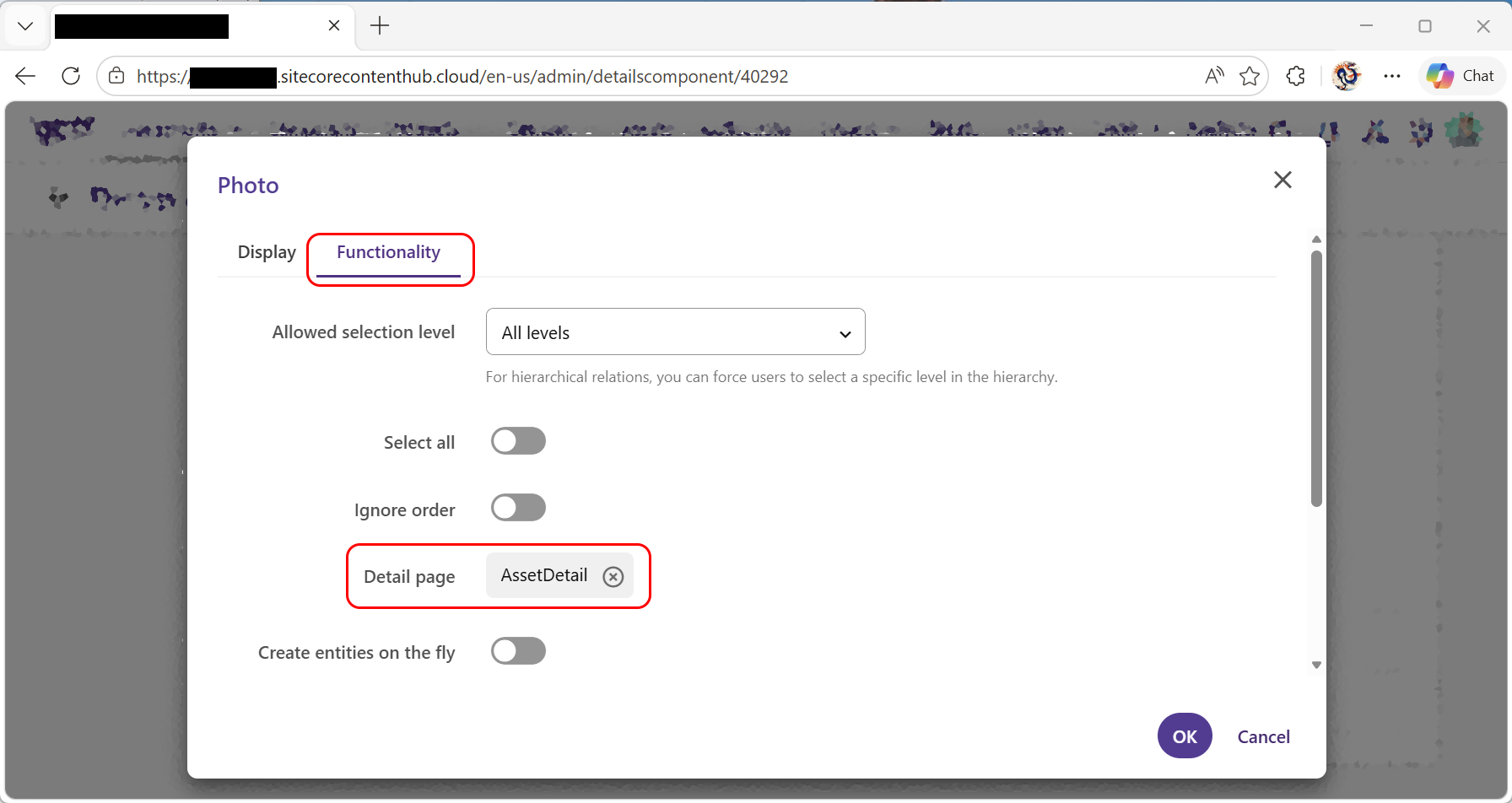
And with those in place, it should work correctly:
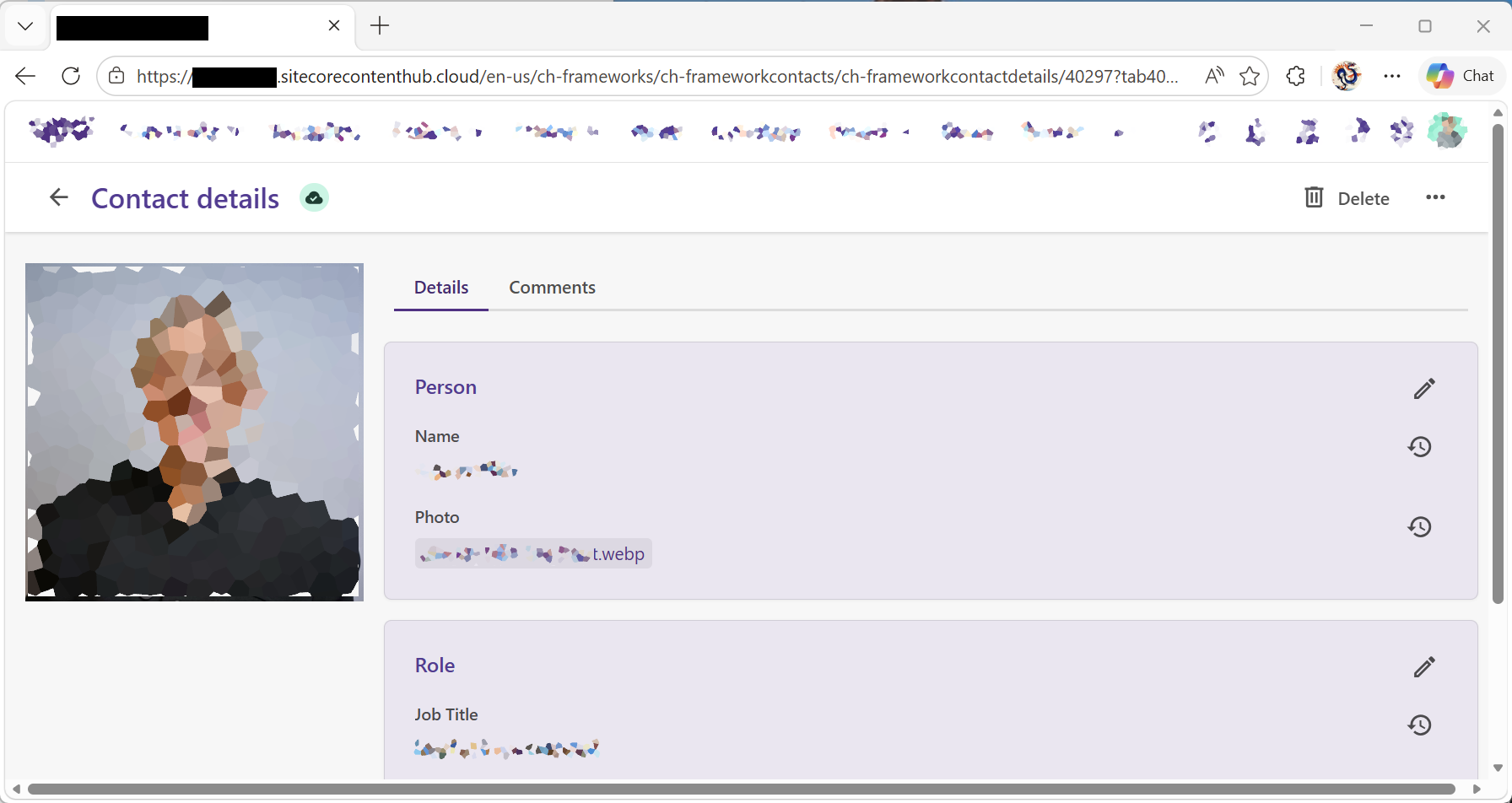
When you set the "Photo" field here to your required image, it becomes a link to the asset detail page, and you see the correct image displayed on the left hand side. (And also on the search listing for these entities)
↑ Back to top